Nova Launcher, precedentemente aggiornata alla 5.0, diventa la 5.0.2 Beta 3 che introduce scorciatoie delle applicazioni sull'app drawer. Non tutti sanno che App Shortcuts permette di attivare funzioni prolungando la pressione su un'icona.
Sebbene questa funzionalità non sia implementata ancora da alcuni sviluppatori, risulta molto comoda non aprendo l'app in questione alla ricerca di una modalità.
Le scorciatoie sono state implementate da Google sul proprio Pixel Launcher con Android 7.1 Nougat, sia sulla home che sull'app drawer.
Oltre alle app predefinite di Google, anche app di terze parti, come Shazam, Grennify, Telegram, ecc. risultano compatibili ed alcune richiedono l'uso di Android 7.1 Nougat. Adesso è compito degli sviluppatori crearne le scorciatoie.
Per il momento è in versione Beta ma potrete iscrivervi al test tramite questo link (Click to open) e aspettare per ricevere l'aggiornamento oppure se volete è possibile scaricare e installate l'APK (Click to open).
L'update porta dei miglioramenti anche per l'animazione oltre ai fix per la lingua coreana.
Showing posts with label UPDATE. Show all posts
Saturday, February 18, 2017
Monday, May 9, 2016
How to install XUI 1.N.0.2 on infinix X510 (Hot 2)

XUI ROM For Infinix Hot 2 X510
Many of us using the Infinix hot 2 have been complaining of one bug or the other, from the battery, the the storage, the camera etc.
Good news, introducing a stable XUI Lollipop ROM for the Infinix hot2, this ROM is so beautiful as its stable, the battery life is impeccable, and the camera quality is super sweet, I know most of us are bored of using the Google camera already.
Screenshots:
ROM feature:
Fast Charger
Support Theme Xui
Battery Saver
Smooth
Note:
This is a custom ROM.
This works fine for both 1GB & 2GB version
You might find some bugs even though I’ve not found one yet
I discovered that if your device running on Android 6.0, after installing this ROM it will hang on infinix logo, So downgrade the phone first to Android 5.1 first before doing this.
Again do this at your own risk
Fast Charger
Support Theme Xui
Battery Saver
Smooth
Note:
This is a custom ROM.
This works fine for both 1GB & 2GB version
You might find some bugs even though I’ve not found one yet
I discovered that if your device running on Android 6.0, after installing this ROM it will hang on infinix logo, So downgrade the phone first to Android 5.1 first before doing this.
Again do this at your own risk
How To Install This ROM
- You must be on Android One ROM, if not Click Here to download.
- You must have TWRP recovery installed, download Here
- DOWNLOAD ~ XUI ROM zip download fix Fix XUI zip
- Download SP Flash Tool from (Latest version) here
- Download ChainFire SuperSU-v2.46.zip from here
Now that you have downloaded the files proceed lets proceed below
- On PC
- Extract TWRP recovery
- Launch SP Flash Tool
- Click on scatter loader
- Navigate to the TWRP extracted folder
- Select the scatter file inside
- Click Download button and connect the device to PC
- Wait for recovery.img to flash
- When you see tick in green circle, flash process is complete
- Copy and paste XUI ROM zip , Fix XUI and SuperSU-v2.46 zip to the root of your sdcard.
- Boot into twrp recovery (power + vol up buttons)
- In twrp, select wipe and click on Advanced Wipe, and tick the following options (System- data- dalvik cache- cache)
- Swipe to perform the wipe
- After the wipe is successful, Go back to twrp recovery front page and select Install.
- Locate the XUI ROM zip and select it for flashing.
- After that is successful, go back and do the same for the Fix XUI file.
- When installaton of FIX_XUI.zip is completed, press back
- Please if twrp offers to install root on your phone, don't let it
- 10.Tap install and select SuperSU-v2.46.zip from SDcard
Wait for installation process to complete.
After installing all the 3 files above, reboot the device and Enjoy XUI 1.N.0.2 on your device
Thanks To:
all Members Infinix Hot 2
All Member Infinix Hot Note X551 Indonesia
Wildfire Agung Nugraha
Yie Ezra
XDA
ANDROBUDDIES TEAM
After installing all the 3 files above, reboot the device and Enjoy XUI 1.N.0.2 on your device
Thanks To:
all Members Infinix Hot 2
All Member Infinix Hot Note X551 Indonesia
Wildfire Agung Nugraha
Yie Ezra
XDA
ANDROBUDDIES TEAM
And Team Hovatek for porting twrp recovery for Infinix x510
If you have any questions, pls use the comment box.
Sunday, May 8, 2016
How To Upgrade Tecno Camon C8 To Android Marshmallow Using Sp Flash Tool
How to upgrade Tecno Camon C8 to Android 6 (Marshmallow) using SP Flash tool
Quite a number of C8 users have been having problems upgrading their phones, even to the HIOS for Tecno C8 . To make upgrading easier, Team Hovatek has made a ROM Dump of a Tecno C8 running on Marshmallow, thereby, making the C8 Marshmallow update SP Flash tool compatible.
Note: This is not an official firmware from Tecno. Team Hovatek dumped the firmware of its copy of the Tecno C8 which had been successfully upgraded to Marshmallow (Android 6.0) using the above guide.
How can I upgrade my Tecno C8 to Marshmallow (Android 6.0) using SP Flash tool?
Extract the content of the zip file into a folder
Install Mediatek VCOM Drivers on your PC
Following the SP flash tool guide here
Install Mediatek VCOM Drivers on your PC
Following the SP flash tool guide here
flash the ROMDump using the Firmware Upgrade option in SP Flash Tool
Boot the phone once flashing is complete.
Setup the phone then go to Settings > About to confirm that your Tecno Camon C8 is now running on Marshmallow.
Credit: TeamHovatek
Monday, April 25, 2016
INFINIX X552 ZERO 3 XUI updated to 1.Z.3.2 ~ Download Now
Note: If you haven’t rooted your device before, and you still have your stock recovery in place, you can download the OTA or TCard version and flash through recovery. But if your device is rooted and you have TWRP recovery install on your device, then it’s advisable you use SP Flash to flash the rom
1. XUI updated to 1.Z.3.2.
2. Added gyroscope function.
3. Added screen recording function.
4. Added weather app.
5. Added shutdown confirm option.
6. Optimized mobile overheating during charging.
7. Improved system stability and performance.
For X552-A1-L-20160330
Download OTA here
TCard Version here
SP Flash XFlashTool-X552-H952-A1-L-20160330.rar learn how to flash it here
For X552-B1-L-20160330
Download OTA here
TCard Version here
SP Flash X552-H952-B1-L-20160330.rar learn how to flash it here
Thursday, April 21, 2016
HOW TO UPGRADE TECNO CAMON C8 TO HIOS UI ANDROID 6.0 MARSHMALLOW
- First of all, make sure you
charge your device to atleast 90% if not less.
- Now, if your device is rooted,
Kindly, unroot it to avoid bricks.
- Lastly, download Tecno camon
Download the Update.zip file from the links below. Make sure you download the right one of your device.
HiOS with Android 6.0 Mashmallow c8 HIOS UI below
Tcard_update_20160415
868MB
DOWNLOAD
HiOS with Android 5.0 Lollipop
Devices with C8-H352-A2-L-20160118 build only
28.4MB
DOWNLOAD
Other Older Builds
1GB
DOWNLOAD7 Procedures To Upgrade Camon C8 To Marshmallow:
1. Place the Tcard_update_20160415 or update.zip on your SD Card (It shouldn't be kept or saved in any folder)
2. Power off your Camon C8
device
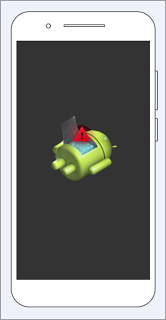
3. Now boot into the bootloader by holding the Power Button + Volume Up until the startup logo appears, then leave the Power Button Only and you should see the android logo.

4. Again, long-press the Power
Button for about 3 seconds, then simply press the Volume Up button this time around without releasing the power button.
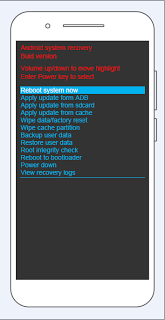
5. Remember, whenever you want to navigate around in this mode, you'll make use of Volume Up or Down buttons. So use Volume Down to navigate to "Apply update from sdcard" and tap the power button to select it.
6. You will be welcomed into a new interface just as you can see from this image.

Now utilize the Volume down
button to navigate to Tcard_update_20160415 and simply tap the power button to select it.
7. At this point, the installation
process will start and when it is
done, you will see a screen like
this. Just reboot your phone and you are all done.
NOTE: It can take up to 8 to 10mins for your Tecno camon c8 Marshmallow to boot finish. You don't have to worry. be patience.
On a successful boot,, you will
see Tecno HiOS and Marshmallow 6.0 on your Tecno Camon C8 Smartphone!
Tecno recently launched the HIOS which is its official User Interface (UI), just like Infinix has XUI. At the moment, HIOS is available for only the Tecno Boom J8 and Camon C8
REQUIREMENTS FOR TECNO CAMON C8 MARSHMALLOW UPDATE:
- First of all, make sure you
charge your device to atleast 90% if not less.
- Now, if your device is rooted,
Kindly, unroot it to avoid bricks.
- Lastly, download Tecno camon
HiOS with Android 6.0 Mashmallow c8 HIOS UI below
Tcard_update_20160415
868MB
DOWNLOAD
HiOS with Android 5.0 Lollipop
Devices with C8-H352-A2-L-20160118 build only
28.4MB
DOWNLOAD
Other Older Builds
1GB
DOWNLOAD7 Procedures To Upgrade Camon C8 To Marshmallow:
1. Place the Tcard_update_20160415 or update.zip on your SD Card (It shouldn't be kept or saved in any folder)
2. Power off your Camon C8
device
3. Now boot into the bootloader by holding the Power Button + Volume Up until the startup logo appears, then leave the Power Button Only and you should see the android logo.

4. Again, long-press the Power
Button for about 3 seconds, then simply press the Volume Up button this time around without releasing the power button.
5. Remember, whenever you want to navigate around in this mode, you'll make use of Volume Up or Down buttons. So use Volume Down to navigate to "Apply update from sdcard" and tap the power button to select it.
6. You will be welcomed into a new interface just as you can see from this image.

Now utilize the Volume down
button to navigate to Tcard_update_20160415 and simply tap the power button to select it.
7. At this point, the installation
process will start and when it is
done, you will see a screen like
this. Just reboot your phone and you are all done.
NOTE: It can take up to 8 to 10mins for your Tecno camon c8 Marshmallow to boot finish. You don't have to worry. be patience.
On a successful boot,, you will
see Tecno HiOS and Marshmallow 6.0 on your Tecno Camon C8 Smartphone!
Saturday, April 2, 2016
Download HUAWEI Y560-U02 Firmware
Download
DESCRIPTION
ROM Phone HUAWEI Y560-U02 – ROM Android 4.4.2
Official ROM HUAWEI Ascend Y560-U02 version: Y560-U02V100R001C328B103
Gapps include – No Rooted
Language support: Multilang
ROM install :
OTA
1.copy ****.zip to root folder of the phone SD card (no need to unzip).
2.Turn off the phone, then keep pressing power button and volume+ button until the robot icon appear, then press power button again
3.Press the volume- to move up and down to choose“wipe data/factory reset”, then press volume+ button to confirm.
4.Choose “yes—delete all user data”, then press volume+ button to enter the page as below.
5.It will enter below page after finishing delete all user data.
6.Then choose“apply update from sdcard”
7.Find and select the ROM, press volume+ to enter the page as below.
8.Please make sure the power is sufficient during the upgrading. It will showed as below when the upgrading finished.
9.Choose “reboot system now”,then press volume+ button to reboot your phone
2.Turn off the phone, then keep pressing power button and volume+ button until the robot icon appear, then press power button again
3.Press the volume- to move up and down to choose“wipe data/factory reset”, then press volume+ button to confirm.
4.Choose “yes—delete all user data”, then press volume+ button to enter the page as below.
5.It will enter below page after finishing delete all user data.
6.Then choose“apply update from sdcard”
7.Find and select the ROM, press volume+ to enter the page as below.
8.Please make sure the power is sufficient during the upgrading. It will showed as below when the upgrading finished.
9.Choose “reboot system now”,then press volume+ button to reboot your phone
Tuesday, March 29, 2016
Download XUI 1.N.3.1 Update For Infinix X551 Hot Note
Latest XUI 1.N.3.1 Update For Infinix X551 Hot Note
The previous update came with some bugs and infinix decided to fix those bugs. While you are still waiting for Marshmallow update for your device, its advisable you update it with this latest upgrade.
UPDATE HIGHLIGHT
Fixed issues:
- Issue where font manager occasionally crashed is fixed
- Improved system manager interface usability and bug fix
- Issue where some apps cannot be arranged or used is fixed
- Other bugs is fixed
Added Function
- Three fingers screenshot is added
- Weather function is added
- Confirmation for shut down and restart options is added
- Download speed display is added
- Screen recording function is added
- Xshare function is added
- Quick wallpaper swap is added
Optimized items:
- Remove pin notification in notification bar, when turn on Mobile Anti-Theft.
Hot Note 16+1GB
SP Flash firmware format X551-G808-A1-L-20160325
TCard Firmware Format X551-A1-Tcard_update_20160325
Hot Note 16+2GB
SP Flash firmware format X551-G808-BC-L-20160325
TCard Firmware Format X551-BC-Tcard_update_20160325
What matters is that Marshmallow is coming soon.
Subscribe to:
Posts (Atom)