Showing posts with label TRICKS. Show all posts

Monday, February 13, 2017

Sei trucchi Whatsapp per facilitare il suo utilizzo

WhatsApp è la messaggistica istantanea più utilizzata nel mondo. Ci sono molte cose che vorremmo vedere su WhatsApp, così Facebook, la società che ha acquistato Whtasapp sta facendo un sacco di miglioramenti costanti. Oggi, è possibile fare cose come effettuare una chiamata video, o aggiungere un GIF , e molto altro ancora. Ecco alcune caratteristiche nascoste di WhatsApp.


L'autenticazione a due fattori

Di recente, WhatsApp ha aggiunto autenticazione a due fattori per il suo servizio di chat. Se vi ricordate, non c'è username e password è necessario utilizzare WhatsApp - è sufficiente digitare il numero di telefono e verificarlo tramite un SMS. Se qualcuno ruba il telefono, anche se il telefono è bloccato, si potrebbe estrarre la carta SIM e metterlo in un altro telefono. In questo modo, avrebbero accesso al tuo account WhatsApp, in quanto avrebbero solo bisogno di un SMS per verificare il nuovo telefono. Abilitando autenticazione a due fattori, è possibile proteggersi da tale comportamento fraudolento, in quanto vi chiederà di impostare un codice di accesso a sei cifre, che WhatsApp chiederà ogni volta che si tenta di ri-verificare il tuo account. E nel caso in cui si dimentica la password, c'è un modo per ripristinare via e-mail.


Rispondere a un messaggio specifico in un gruppo di chat

Questo problema è successo a chiunque, mentre si conversa capita che si risponde un po' più tardi, lasciando l'altro utente spaesato per ritrovare la rispostqa che tu hai mandato in mezzo a centinaia di messaggi. Nel gruppo, premere e tenere premuto su una particolare messaggio, e premere il pulsante freccia indietro che appare in alto su Android. Ciò consente di citare il messaggio particolare in una conversazione, che si può commentare. Inoltre, toccando il messaggio citato la chat scorre la alla posizione del messaggio originale.


Scopri chi ha letto il messaggio in una chat di gruppo

In una conversazione uno-a-uno, è facile capire se il destinatario ha letto il messaggio WhatsApp, grazie al colore blu simbolo della doppia spunta. Ma in una conversazione di gruppo WhatsApp, non è così ovvio per dire chi esattamente dal gruppo ha letto il messaggio. In realtà c'è un modo semplice per scoprire questo - tenere premuto il messaggio e premere il tasto 'i' in alto su Android. Qui, si arriva a vedere come molte persone del gruppo WhatsApp hanno letto questo messaggio particolare.


Ascoltare i messaggi vocali discretamente

Alcune persone preferiscono l'invio di messaggi vocali WhatsApp invece di digitare il testo. Un problema comune con questo è che premendo il pulsante 'play' rende il messaggio vocale in vivavoce per impostazione predefinita. Questo può essere un problema quando si è in prossimità di altre persone e si preferisce che loro non sentano.
La soluzione è semplice - basta premere il pulsante 'Play' e mettere il telefono all'orecchio - che verrà automaticamente passato dall'auricolare e ascoltare il messaggio vocale WhatsApp.


Modificare il testo per una migliore enfasi

C'è certa sintassi che è possibile applicare per manipolare il testo per una migliore attenzione alla WhatsApp. Ad esempio, l'applicazione di un asterisco prima e dopo le parole (ad esempio * in questo modo *) li fa apparire in grassetto nella conversazione. Allo stesso modo, l'aggiunta di sottolineatura (ad esempio stato scritto _COME QUESTO_) rende il testo in corsivo, e le parole racchiuso all'interno di due simboli (~) barra la scrittura.


Taggare qualcuno in una conversazione di gruppo

Ultimo ma non meno importante, l'aggiunta di un @name in una conversazione di gruppo WhatsApp consente di avvisare gli altri utenti di essere stati citati all'interno di un gruppo, simili a @ menzioni su Twitter o tag su Facebook.

Ecco sperando che hai scoperto una funzione utile WhatsApp che renderà il suo utilizzo migliore. Se conosci altri trucchi puoi scriverli tramite i commenti qui sotto.

Wednesday, August 10, 2016

How to Customize Notification LED Behavior on Android

Easily Customize Notification LED Behavior on Android by enabling the push led notification and then using the “Light Flow – LED Control” app that will allow you to fully customize the led working according to your wish.

Android notification is one of the cool thing that is present android. As far back as Android gadgets began highlighting a RGB LED light for warnings, it has turned into a vital part of the stage. While it may appear like a basic expansion, it’s very underrated. Warning LEDs ensure that you know of any missed notices notwithstanding when your device is somewhat away keeping in mind surrounding presentations are picking up prevalence, notice LEDs remains the favored answer for some clients. In addition, you can absolutely alter the notice LED conduct on Android. Before we let you know how you can do that, here’s the way you can first empower beat warning on your Android cell phone. So have a look on complete guide discussed below to proceed.

How to Customize Notification LED Behavior on Android

The method is quite simple and easy and you just need to follow some simple guide that we have discussed just right below.

Steps To Customize Notification LED Behavior on Android:

#Enabling Pulse Notification

In your android mobile you need to head towards Settings -> Sound & notification and there you need to turn on “Pulse notification light“.

If you have the latest version of Android that is Android N then you need to head towards Settings -> Notifications and there hit the settings cog button and simply enable “Pulse notification light”.


#Using Light Flow App to Customize Notification LED

  1. Firstly download and install the app Light Flow – LED Control in your android mobile.
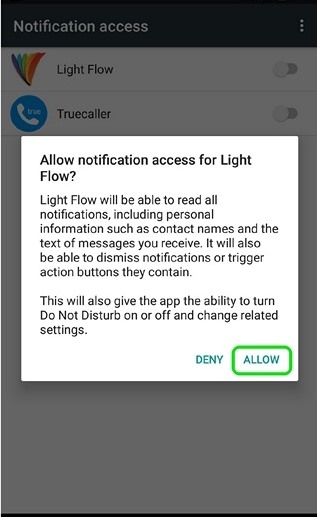
  2. When you first open Light Flow, you will need to give the application warning access. You can simply tap on “Set up” and turn on Light Flow in the notice access page. On the off chance that you skip it here, you will discover the alternative in Settings-> Sound and warning -> Notification access.


At that point, you will be given an appreciated page and a couple insights and tips on the application. You can tap on “Got it” to push ahead.


You will then see the rundown of applications, whose warnings you can tweak. Close to each application, you will discover the alternative to change the sound, vibration example and notice LED shading.

You can likewise tap on the gliding in addition to catch to add a custom warning light for different applications, settings and contacts. You can tap on the three-dab catch next to applications to impair a notice or go to particular warning settings of an application.
Now you can alter all the settings in it according to your wish and that will depend upon your hardware functionality of your device.

If your android is rooted then this app will provide you some extra features and if you want to root your android then you can proceed with the guide root any android mobile


so above discussion is all about Customize Notification LED Behavior on Android. By using the above guide, you can easily customize your android LED notifications according to your wish. So must try this out today. Hope you like the guide, keep on sharing with others too. Leave a comment below if you have any related queries with this.


Tuesday, August 2, 2016

How to Make your Android Safe for Kids


you might be familiar with the smartphones and all the features that it provides, you also might be knowing that to use the smartphones one should have some skills and knowledge unless you can cause damage to the device. If your device gets into the hands of kids then they can unknowingly delete the essential files, cause transactions with some useful apps and accounts etc. The kids don’t know much about the value of data inside the phone and hence can play with that data randomly. But if you are a Android user then there are some steps that you can follow to make your device safe for kids. So have a look on complete guide discussed below to proceed.

How to Make your Android Safe For Kids

These are some important things that you can do to make your Android safe for kids. And all of these are listed below, so refer them and implement them in your device today.

#1 Creating Different User Profile For Your Children In Android

In android you can easily create multiple user profiles and with the desired restricted access. And for your children you can follow the guide to create the restricted user profile with the help of step by step guide below.
1. First of all in your android device go to Settings -> Users.

2. And there you will see the option Add user or profile,  and  there you will have the option of setting up two different types of user profiles that are restricted and regular.
3. You can set this according to your wish if you want a restricted account where you want to give only few access and in regular a different account.


. Now you will be on  Application and content restrictions screen where you can allow only selected apps to be there in that account and keep in mind of your children you can set up restriction according to your wish.

#2 Block In-App Purchases In Play Store


While exploring your android kids might get into the the play store and can accidentally make the app purchases which can costs you a lots, so better is to restrict the in-app purchases in your android before you are going to give your device to your kids.
For this in your Play store you need to navigate to Settings -> User Controls and there restrict the media based restriction according to the user ratings and you can also block the app purchases there too.

#3 Turning Install From Unknown Sources Off

Kids can accidentally allow the installation of certain bloatware and crapware apps in your android from the third party sites, so better is to turn them off to avoid the risk of your android being vulnerable to various security threats.
For this navigate to Settings-> Security -> Untick Unknown Sources.

#4 Using Toddler Lock App in Your Android

Child lock with colorful graphics and soothing sounds to keep your kids entertained without having to worry about them making calls or starting other apps. Teach your child shapes and colors. Optionally enables airplane mode while application is active, so as to not irradiate your little darling.

#5 Using the App Lock To Lock Certain Apps

The most common way that most usees use to secure their privacy from others is App lock. It helps users to lock certain apps that user don’t want to be used by any other person. So you can use the App Lock Android App to lock certain apps.
So above are the best possible ways for How to Make Your Android Safe For Kids. Follow these methods and make your android safe for kids and they will have only that much access that you only want to give them. So follow the guide and implement this today. Hope you like this article, do share with others too. leave a comment below if you have any related queries with this.


Thursday, July 28, 2016

Google Launches A New Website With Tips And Tricks For Android


As we all know that Android is one of the most interesting operating system, as it can be always exploited in a big and innovative ways, so thanks to the Android user community. Hence, the tech giant Google is aware of that and has created a platform where we can easily find a series of tips and tricks for Android.

Google Launches A New Website With Tips And Tricks For Android

The Google team does not want us to forget the potential of Android, hence the tech giant Google created a new website with a series of tips and tricks for Android. As we all know that still there are many new Android users who are actually new to Android.
Might it be a long time using Android as a casual user and now want to delve a little on the platform? Here, the tech giant Google decided to help you as they launched a new website that provides valuable tips and tricks for Android.
The site’s main goal is to target new users or audience who are unaware of the system resources, but certainly, it brings smart tips for those who already use Android for some time, but not yet unpacked all that the system offers. As the new updates always bring new features and tools, a website with smart tips and tricks can be a real hand on the wheel.

Basically the tips and tricks were separated into the following categories, “Featured” especially provide all round tips, “Privacy and Security” provide the safety and privacy tips, “Voice” provide all the tricks to use voice commands like a master, “Camera and Photo” bringing together the camera tips, “Battery” teaches ways to better ways to conserve battery, “Customisation” provide customization tricks for the system, “More Apps” provide tips fo the native system applications and the least one is “Settings” where all the tips and tricks are provided related to the settings of your Android OS.
As we said earlier that this site is intended for the new users who begin to know its Android operating system. As it is an ideal site to recommend to those family members who have thousands of questions regarding the Android and its use, as they will have some basic tips that will be useful.
Moreover, to view the information or tips and tricks you just have to click on the “Learn More” button and a pop-up window will open. The instructions are actually a complete set of few simple and basic steps, so basically, you do not need to read more than a few lines to implement the tips and tricks on your device.
Here is the site link where you can browse all the essential tips and tricks for your Android device.

Tuesday, March 29, 2016

Get Upto N20,000 Free Airtime Using Sliide Airtime App

You Can Get Upto N20,000 Free Airtime Using Sliide Airtime App

To those who don’t know that you can get free airtime with this unique app. Some people are already rocking it and you too should not be left out. It’s called Sliide Airtime.
Sliide Airtime displays gist and news on your smartphone lock screen and at the end of the month reward you with free airtime for just using your smartphone. On the contrary, you can earn N100 every time someone sign up through you.


You can accumulate lots of credit by referring the app and your unique code to others. You get free N100 each time someone sign up with your code. Once you are satisfied with what you’ve earn, you can cash out.

          
What Can I do With The Earned Credit?

  • You can make calls with it
  • You can use it to subscribe for data and even send sms with it.
Where Can I Get it?
Go to https://sliideairtime.ng/ and sign up or 
download the app from Google Play store
Sign up(on signing up, use the code '9jarom' and earn your first free N100) and start referring your friends to use the app. The more you refer, the more you earn. I know of someone who have accumulated N20,000. It works just like that.