Windows 10 Anniversary Update will begin rolling out around the world. The Windows 10 Anniversary Update is full of new features and innovations that bring Windows Ink and Cortana to life; a faster, more accessible and more power-efficient Microsoft Edge browser; advanced security features; new gaming experiences and more. The Windows 10 Anniversary Update will start rolling out to Windows 10 Mobile phones in the coming weeks.
The Windows 10 Anniversary Update is being rolled out to Windows 10 PCs across the world in phases starting with the newer machines first. You don’t have to do anything to get the Windows 10 Anniversary Update, it will roll out automatically to you through Windows Update if you’ve chosen to have updates installed automatically on your device. However, if you don’t want to wait for the update to roll out to you, you can manually get the update yourself on your personal PC. If you’re using a Windows 10 PC at work, you will need to check with your IT administrator for details on your organization’s specific plans to update.
Read more at https://blogs.windows.com/windowsexperience/2016/08/02/how-to-get-the-windows-10-anniversary-update/#ZMI61X8Smr8eLb88.99
Showing posts with label Windows 10.how to. Show all posts
Showing posts with label Windows 10.how to. Show all posts
Wednesday, August 3, 2016


Thursday, June 23, 2016
Install Android Studio 2.1.2 on Linux Mint 17.3 Rosa
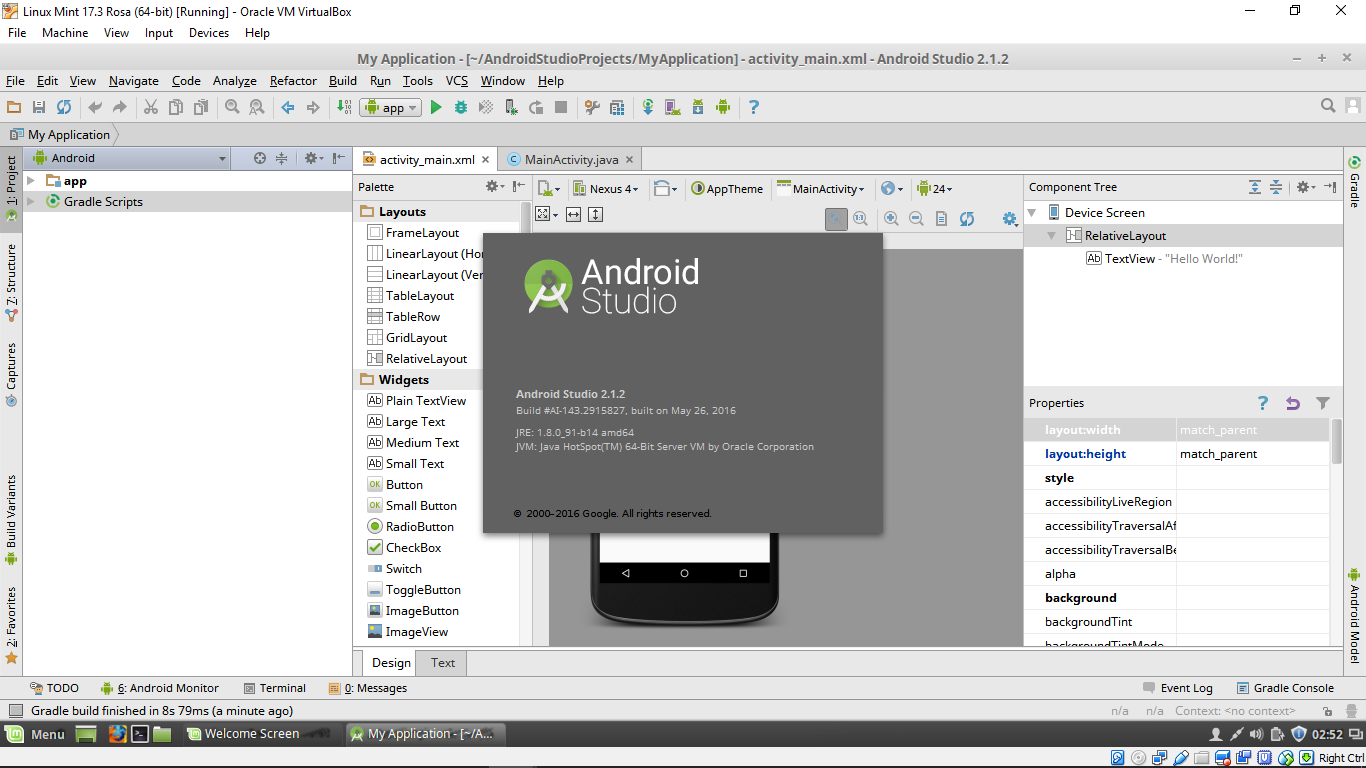
This video show how to install Android Studio (currently 2.1.2) on Linux Mint 17.3 Rosa run on VirtualBox/Windows 10.
Before install Android Studio, have to install jdk. Refer to Install Oracle Java8 on Linux Mint 17.3 Rosa.
Enter in Terminal:
$ sudo add-apt-repository ppa:ubuntu-desktop/ubuntu-make
$ sudo apt update
$ sudo apt install ubuntu-make
$ umake android
After reboot, launcher icon of Android Studio will appear in Linux Mint Menu.
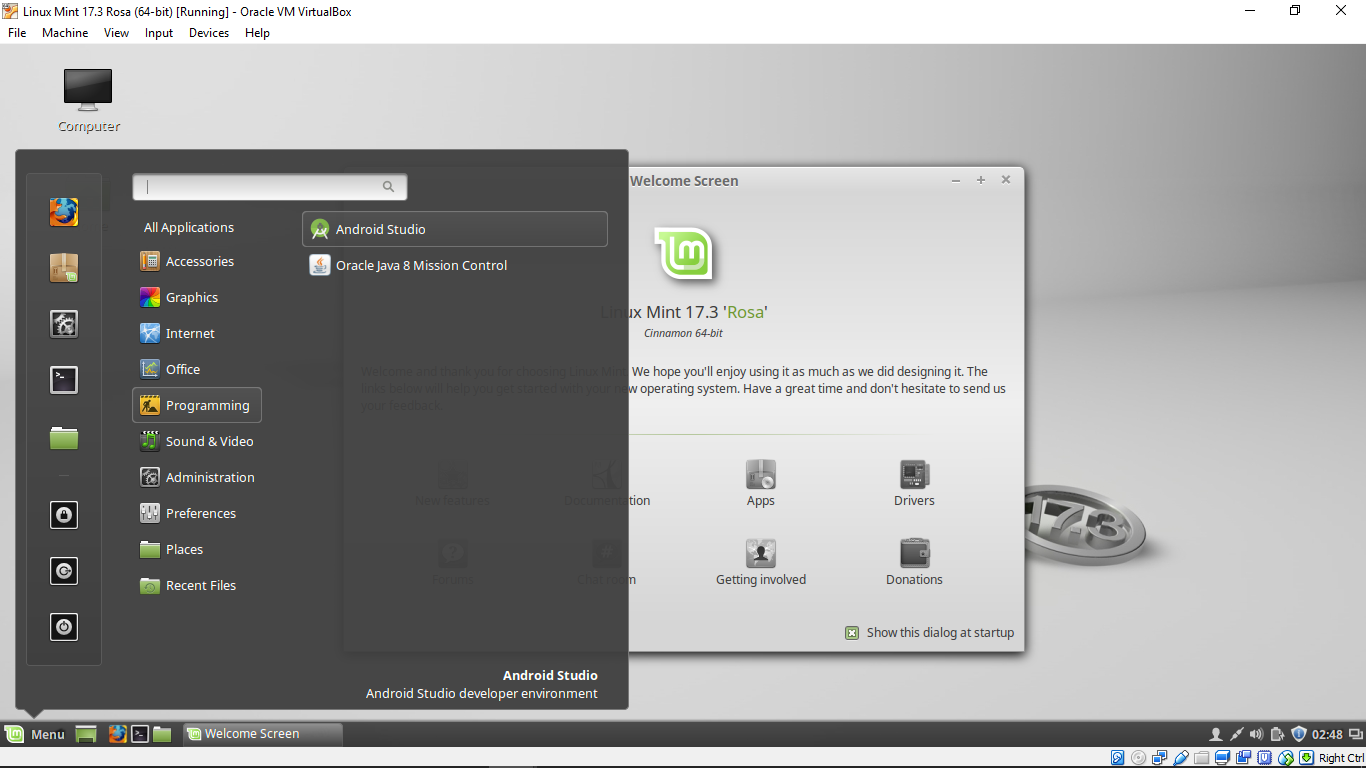
Install Linux Mint 17.3 Rosa on VirtualBox/Windows 10
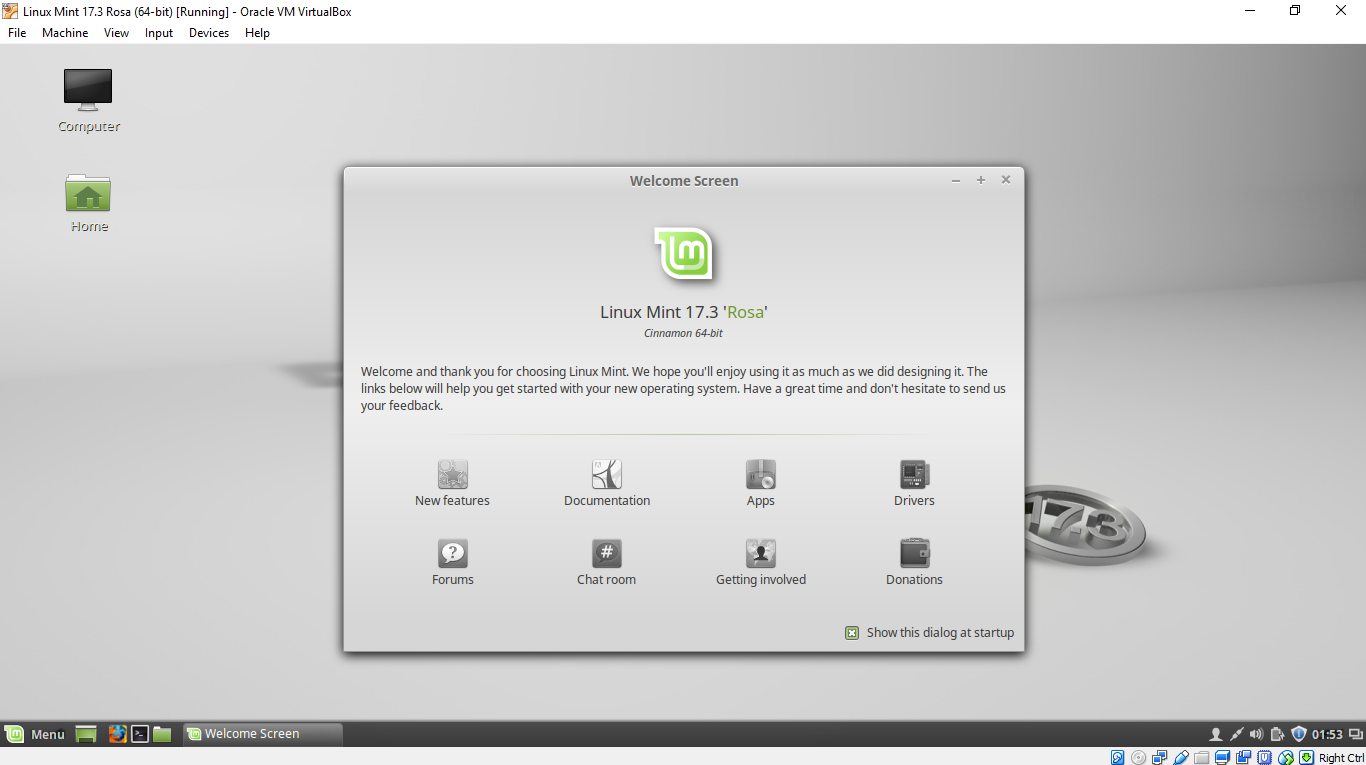
This video show how to install Install Linux Mint 17.3 Rosa on Oracle VirtualBox/Windows 10.
Download Linux Mint iso file from https://www.linuxmint.com/.
The video also show how to enable 3D Acceleration in VirtualBox. (Please note: In my experience of using Ubuntu on VirtualBox/Windows 10, sometimes will have problem when 3D Acceleration enabled.)
Friday, April 22, 2016
Install Ubuntu 16.04 LTS on VirtualBox/Windows 10

- Visit Ubuntu web site to download the ISO of Ubuntu 16.04 LTS desktop.

Follow the steps in this video to install Ubuntu 16.04 LTS on VirtualBox/Windows 10.
After Ubuntu installed, it's strongly recommend to install Guest Additions Module, such that your virtual Ubuntu can be re-size and fit your screen.
Install Ubuntu-MATE 16.04 on VirtualBox/Windows 10
Ubuntu-MATE is another community developed Ubuntu based operating system that beautifully integrates the MATE desktop.
glmark2 test on VirtualBox/Ubuntu-MATE 16.04
glmark2-es2 test on VirtualBox/Ubuntu-MATE 16.04
On ASUS Notbook Aspire E 15, E5-573
CPU: Intel Core i5-5200U
with 3D Acceleration enabled in VirtualBox.

Sunday, March 13, 2016
Calculate SHA1 checksum using Certutil in Windows 10

Certutil.exe is a command-line program that is installed as part of Certificate Services. You can use Certutil.exe to dump and display certification authority (CA) configuration information, configure Certificate Services, backup and restore CA components, and verify certificates, key pairs, and certificate chains. ~ details
Example:
CertUtil -hashfile kali-2.1-rpi2.img.xz SHA1
This video show how to:
Subscribe to:
Posts (Atom)